
Our readers keep the lights on and the garage heater humming. As an Amazon Associate, I earn from qualifying purchases.
Navigation isn’t just “finding your way.” It’s decision-making at speed: which lane, which ramp, which exit, which side street, which turn that looks right but quietly adds ten minutes. And the cost of bad navigation isn’t only time — it’s stress, fuel, missed appointments, and those little “why did I do that?” moments that follow you into the parking lot.
If you’re shopping for the best navigation system for car, you’re already ahead of most drivers: you’re trying to remove uncertainty from every trip, from the daily commute to the “I don’t know this city” weekend. Here’s the part most buying guides skip: navigation products don’t fail because they’re missing a feature — they fail because they introduce friction. A mount that vibrates, a screen that glares, a voice that speaks too late, an update process you’ll never actually do, or a setup that makes you dread using the thing you paid for.
This guide is built around real-world pain points pulled from everyday user experiences: address entry that feels slow, “GPS signal” delays, time-zone weirdness, confusing menus, CarPlay connections that sometimes feel moody, in-dash installs that require trimming, and the one thing you can’t measure on a spec sheet — how calm you feel when the route gets complicated.
Below, you’ll find 14 standout options across three categories: dedicated GPS navigators (the reliable, offline workhorses), CarPlay/Android Auto screens (phone-powered smarts with big-screen clarity), and in-dash replacements (full infotainment upgrades). No fluff. No “bigger is always better.” Just clear guidance, honest pros/cons, and which model fits your driving life.
In this article
- How to choose the right navigation setup for your car (and your patience).
- Quick comparison table of 14 standout models.
- In-depth reviews of each navigation system, with pros and cons.
- How navigation systems fail in real life (and how to avoid it).
- FAQ + final buying tips to lock in the right choice.
How to Choose the Best Navigation System For Car (Based on How You Actually Drive)
A navigation system is “good” when it reduces mental load — not when it adds features you’ll never use. The best choice depends on your biggest pain point: cell dead zones, tiny phone screens, late voice prompts, confusing lane changes, or a car that simply doesn’t have modern infotainment. Here’s the decision framework I use to sort the hype from the hardware.
1. Pick your navigation style first: Dedicated GPS vs CarPlay vs In‑Dash
This is the fork in the road. Everything else is secondary.
- Dedicated GPS navigator: Built to navigate even with zero cell service. Updates are typically handled through Wi‑Fi or a computer. These tend to be calmer, more “car-focused,” and less distracting than a phone screen.
- CarPlay / Android Auto screen: Your phone provides the maps and smarts, but the car gets a bigger, safer display. Perfect for drivers who already trust Google Maps / Waze / Apple Maps and want a bigger screen without replacing the factory stereo.
- Full in‑dash replacement: You swap your head unit for a modern system with CarPlay/Android Auto, backup camera support, and sometimes built-in GPS. Great for older cars, but installation quality matters more than the product itself.
2. Screen clarity beats screen size (and glare is the hidden villain)
A huge screen that reflects sunlight is worse than a smaller screen that stays readable. When you’re shopping, focus on the things that actually change your day:
- Brightness and contrast for midday driving.
- Viewing angle so the screen stays readable when you’re slightly off-center.
- Touch accuracy so you can enter addresses without “tapping twice” drama.
- Mount stability so the screen doesn’t bounce at every bump.
Real-world reality: a lot of navigation frustration is not the map — it’s the hardware’s ability to stay readable and controllable when you’re actually driving.
3. Traffic data is a “pipeline,” not a checkbox
Drivers love to say “I need live traffic,” but they often underestimate the pipeline behind it:
- Phone-powered traffic (CarPlay/Android Auto): Excellent in most places, but depends on your phone signal and phone battery health.
- Hybrid traffic (Garmin + app): A dedicated GPS can pull live traffic when paired to a phone, but still navigates fine without it.
- Offline GPS: Doesn’t care about your signal — great for dead zones — but you won’t get the same real-time reroutes in dense cities.
So the question isn’t “does it have traffic?” The question is: will it still feel great on the day your phone signal is weak? That’s why many experienced drivers run a hybrid setup: a dedicated GPS as the stable foundation, with phone pairing for extra data when available.
4. Updates: the “pain tax” you pay later
Updates are where people silently abandon devices. If updating feels annoying, you won’t do it — and then you’ll blame the device for being “outdated.” There are three common update experiences:
- Wi‑Fi updates (easy): Park at home, connect to Wi‑Fi, update. This is why premium Garmin units feel so low-drama.
- Computer updates (fine if you’re organized): Plug into a PC, run updates. Works, but you need to actually remember.
- “Contact the manufacturer” updates (variable): Some budget GPS units ask you to email support for map packages. Sometimes support is great. Sometimes it’s slow. Your tolerance matters.
5. Voice guidance is about timing, not volume
A good navigator gives instructions early enough that you can make decisions without panic. A great navigator does three things:
- Calls out lane changes early (so you move smoothly, not sharply).
- Repeats key turns without becoming annoying.
- Uses language you understand (“keep left” versus vague phrases that cause hesitation).
Owners of higher-end systems often praise “calm timing” — voice prompts that arrive early enough to feel like help, not a surprise. That’s a real differentiator, and it shows up most in complicated highway interchanges.
6. Installation realism: what you’ll actually deal with
If you’re choosing an in-dash head unit or an add-on screen, here’s the honest reality:
- In-dash upgrades often require a wiring harness, dash kit, and sometimes light trimming. The “product” can be excellent, but a messy install will make you hate it.
- Add-on CarPlay screens are fast to set up, but cable routing and rear camera wiring is where time goes. If you want “clean,” plan the cable path before you stick anything down.
- Dedicated GPS units are the simplest: mount, power, go. The biggest variable is whether the suction cup mount behaves in heat/cold.
7. Special cases: trucks, RVs, and height/weight restrictions
If you drive anything bigger than a standard car, “truck routing” isn’t a gimmick — it’s a stress reducer. The best truck-capable units let you input height/weight/length and attempt to avoid restricted roads and low bridges. In real-life feedback, drivers tend to value this feature most on unfamiliar routes or when detours pop up unexpectedly.
Quick Comparison: 14 Best Navigation System For Car Picks
Use this table to narrow the field, then jump into the deep reviews for the “real life” details — like update friction, mount stability, voice timing, and what owners love (or complain about) after weeks of driving.
On smaller screens, swipe or scroll sideways to see the full table.
| Model | Category | Navigation approach | Best match | Amazon |
|---|---|---|---|---|
| Garmin DriveSmart 76 | Premium GPS | Dedicated GPS + optional phone pairing for smarter live data | Most drivers who want a “set it and trust it” navigator | Amazon |
| Garmin DriveSmart 86 | Large-screen GPS | Dedicated GPS with a bigger, higher-res display and smart pairing | Road-trip drivers who want maximum map visibility | Amazon |
| TWAHH 10.2″ Jeep Wrangler/Compass Head Unit | Vehicle-specific | In-dash Android system + GPS + wireless CarPlay/Android Auto | Jeep owners who want an OEM-style modern upgrade | Amazon |
| BOSS Elite BN965BLC | In-dash nav | Built-in navigation + media head unit (DVD/CD/USB/SD) | Drivers who want navigation + classic media features | Amazon |
| Kuayvan 11.5″ Portable CarPlay Screen (4K Dash Cam) | Add-on screen | Wireless CarPlay/Android Auto + front/rear cameras | Older cars that need modern navigation fast | Amazon |
| Kissound 7″ Double Din Wireless CarPlay/Android Auto | In-dash upgrade | Phone-powered maps + strong audio tuning & camera support | Drivers modernizing an older dash without Android complexity | Amazon |
| Haudio 7″ Android Double Din (Wireless CarPlay/AA) | Android head unit | Android apps + CarPlay/Android Auto + backup camera | Drivers who want app freedom and don’t mind setup | Amazon |
| Garmin Drive 53 | Simple GPS | Dedicated GPS with driver alerts and clean menus | Drivers who want Garmin reliability without premium extras | Amazon |
| OHREX N700 (7″) Truck/RV GPS | Truck routing | Offline maps + truck/RV parameters + lane guidance | RVers and truck drivers who want height/weight awareness | Amazon |
| HINYFVOZ 7″ GPS (2026 maps + safety alerts) | Truck routing | Offline maps + speed/red-light alerts + custom routing | Drivers who want safety alerts without phone dependency | Amazon |
| Ptaram 7″ GPS (256MB/16GB, 2026 maps) | Value GPS | Offline maps + lane assist + multi-vehicle modes | Drivers who want a big, readable offline screen | Amazon |
| HINYFVOZ 7″ GPS Navigator (2026 maps, complete kit) | Value GPS | Offline maps + alerts + windshield/dash mounting kit | First-time GPS buyers who want plug-and-play | Amazon |
| AXIOVINEX 7″ GPS (2025 maps, multi-vehicle) | Value GPS | Offline maps + strong screen readability + multi-mount options | Drivers who want simple offline navigation with a bright display | Amazon |
| HINYFVOZ 7″ GPS (2026 maps, bilingual options) | Value GPS | Offline maps + speed alerts + easy POI search | Families who want a simple dedicated navigator for trips | Amazon |
In‑Depth Reviews: 14 Navigation Systems Drivers Actually Enjoy Using
Now we’ll go model by model. I’m going to talk like someone who’s installed these, lived with them, and noticed the small details that make navigation either feel effortless… or feel like one more device you end up ignoring.
1. Garmin DriveSmart 76 – The “Trust It Daily” Navigator for Most Drivers

If you want navigation that feels calm — like it’s working with you instead of shouting at you — the DriveSmart 76 is a sweet spot. It’s not trying to be your phone. It’s trying to be a better “car brain”: a dedicated navigator with a big, legible screen, solid voice guidance, and a workflow that makes sense when you’re already driving.
Here’s the real reason people stick with premium Garmin units: friction is low. The menus are predictable. The map is clean. The device boots up, finds itself, and starts behaving like a tool — not a project. And when you pair it with your phone, you can add extra intelligence (traffic, weather, notifications) without turning the whole experience into “phone dependency.” That hybrid approach is underrated: you get the stability of offline navigation, plus optional real-time help when it’s available.
In daily use, the DriveSmart 76 tends to shine in exactly the places where phones can feel stressful: multi-lane interchanges, unfamiliar suburbs, and long drives where you don’t want to stare at a tiny screen. Owners frequently talk about clarity: the screen is easy to read, the prompts feel well-timed, and the device doesn’t ask you to constantly confirm, tap, and re-tap.
The “hidden win” is mental bandwidth. When a navigator makes lane decisions clearer, you drive smoother. When your driving is smoother, you feel less tense. And when you feel less tense, you make better decisions. That’s what this kind of device really buys you.
Why you’ll like it
- Low-friction daily workflow – Clean menus and a calm layout that feels built for driving.
- Hybrid intelligence – Works confidently offline, with optional smartphone pairing for extra data when you want it.
- Excellent “big-screen clarity” – Makes tricky interchanges easier by showing more context at once.
- Better than phone ergonomics – Less overheating, fewer distractions, and you keep your phone free for passengers or backup.
Good to know
- Like all GPS devices, it’s only as good as your willingness to keep maps updated — but its update flow is typically easier than budget models.
- If you want the absolute largest screen, the DriveSmart 86 is the “go bigger” version.
- Some drivers prefer a dashboard mount over a windshield mount for stability; consider your cabin layout early.
Ideal for: most drivers who want a reliable, low-stress navigation system that feels better than a phone for everyday driving and road trips.
2. Garmin DriveSmart 86 – The Road‑Trip “Command Center” With Maximum Visibility

The DriveSmart 86 is for drivers who want to see the route like a pilot sees a flight path: clearly, early, and with context. If your biggest navigation stress is “I can’t read my phone fast enough,” this solves it with one move — a larger, crisp display that lets you glance and understand without squinting.
But the big story is not just size — it’s what size enables. With more map on screen, lane decisions feel less sudden. You can see merges coming earlier. You can understand the shape of a complicated interchange instead of reacting to a single prompt. That matters on road trips, in dense highway webs, and in unfamiliar cities where missing one exit can turn into a ten-minute loop.
Drivers who pick the 86 often do it for one specific reason: confidence. It’s easier to trust a device when it communicates in a way your brain can process quickly. Add the hybrid pairing option (when you want live extras through your phone), and it becomes a high-end navigation experience that still keeps you anchored in a dedicated device workflow — a key advantage over purely phone-powered navigation.
This is also a smart “shared vehicle” pick. If multiple family members drive the same car, a big-screen GPS is more universally usable: less tech skill required, fewer tiny buttons, and fewer “where do I tap?” moments.
Why it’s special
- Maximum map readability – Big, high-res screen reduces the need for long glances.
- Better route context – Seeing more of the map makes lane changes and merges feel calmer.
- Road-trip friendly tooling – Great for long drives where you want clean, continuous guidance.
- Hybrid pairing flexibility – Keep offline stability, add connected extras when you want them.
Good to know
- A larger screen needs thoughtful placement so it doesn’t feel visually “busy.” Pick a mount location that keeps your sightline clean.
- If you prefer a slightly smaller footprint, the DriveSmart 76 delivers a very similar experience in a more compact form.
- Like any suction mount, occasional re-seating can be needed in extreme temperatures.
Ideal for: road-trip drivers, commuters with complex highway interchanges, and anyone who wants the clearest “one glance and you get it” navigation display.
3. TWAHH 10.2″ Jeep Wrangler/Compass Head Unit – OEM‑Style Modern Navigation (Without the OEM Price Pain)

If you drive a Jeep in the supported model range, this is the kind of upgrade that can make your cabin feel “new car” overnight. It’s not a generic double-din that you have to force into place — it’s designed around the vehicle, so the end result can look cleaner and more integrated than most universal installs.
The real-world payoff is convenience: modern navigation on a large screen, wireless phone integration, and the ability to handle multiple “car tasks” in one place. Owners often describe the moment it clicks as relief — no more balancing a phone mount, no more tiny screen navigation, no more choosing between seeing the map and seeing your music controls. It becomes a central dashboard tool, which is exactly what a navigation system should be.
Where this category wins is “car life” features: split screen views, custom UI options, steering wheel controls, and faster in-car access to what you use daily. And because it’s Android-based, you’re not boxed into only the features the manufacturer preloaded — you can use navigation apps the way you already like them. That flexibility is powerful if you’re comfortable doing a bit of setup.
The most important practical advice: treat installation like a project, not a five-minute swap. Owners who love these upgrades typically do two things: (1) plan cable routing and connections before reassembling trim, and (2) test steering wheel controls and camera inputs before snapping everything into place. Do that, and the experience tends to feel premium and stable.
Why Jeep owners love it
- Vehicle-specific fit – A cleaner, more OEM-style finished look than many universal head units.
- Modern navigation workflow – Big-screen maps, wireless phone integration, and better daily usability.
- Strong support stories – Many owners report quick, helpful troubleshooting from the seller when setup quirks appear.
- Upgrade flexibility – Runs like an in-car tablet, which can be a huge advantage if you like app options.
Good to know
- Some installations may require small wiring adjustments depending on trim level or transmission configuration.
- Android-based systems reward patience: you’ll get the best result after you dial in settings and audio tuning.
- If you want “zero install complexity,” a dedicated GPS (Garmin) is simpler — but not as integrated.
Ideal for: Jeep Wrangler/Compass/Patriot owners who want a modern, integrated navigation and infotainment upgrade that feels like a real cabin transformation.
4. BOSS Elite BN965BLC – In‑Dash Navigation + Media for Drivers Who Still Love Buttons and Discs

The BN965BLC is a specific kind of product: it’s for drivers who want a classic “head unit” experience with built-in navigation and a lot of media flexibility — DVD/CD, USB, SD, radio, and camera support — all in one dashboard replacement. If you grew up with in-dash systems and you want that feeling again (instead of relying on a phone), this category can be satisfying.
In real-world ownership, the story is mixed — and that’s exactly why it’s worth discussing honestly. Many drivers like the feature density: you get navigation guidance, a backup camera, Bluetooth calling, and a ton of input/output options. If you’re running amps and subwoofer setups, the outputs can be a practical advantage for building a fuller system. Some owners also appreciate that it can feel “complete” once installed: you’re not juggling separate screens and mounts.
The flip side: touch accuracy can make or break the entire experience. In reviews across the web, the most consistent complaints aren’t about navigation coverage — they’re about touchscreen behavior (calibration drift, mis-taps, or a screen that feels inconsistent). That’s not a small issue, because navigation is basically “tap to trust.” If the device doesn’t register your taps cleanly, entering an address becomes a frustration loop — and a frustrated driver will stop using it.
So here’s the expert way to view this product: it’s an “install-and-test” unit. If you install it, calibrate it, and the touch layer behaves well, it can be a strong, feature-rich dashboard upgrade. If you get a unit with touch issues, you’ll hate it. This is why you should test every screen function (including address entry) before fully reassembling the dash. That one step is the difference between “love it” and “why did I do this?”
Why it can be a win
- True in-dash all-in-one – Navigation, media, Bluetooth, and camera support in a single unit.
- Old-school media flexibility – Great if you still use discs or keep music on USB/SD.
- Expandable audio setup – Useful outputs for drivers building a fuller sound system.
- Backup camera included – Practical safety and daily parking help without extra shopping.
Good to know
- Touchscreen consistency is the main risk; test early and thoroughly before final dash reassembly.
- Navigation UX is more “classic head unit” than “modern phone smooth.” If you want modern fluidity, consider CarPlay/Android Auto options.
- In-dash installs often require a dash kit and harness; plan parts upfront to avoid a stalled install.
Ideal for: drivers who want a feature-dense in-dash replacement with built-in navigation and media playback — and who are willing to test touchscreen behavior carefully.
5. Kuayvan 11.5″ Portable CarPlay Screen – The Fastest Way to Add Modern Navigation to Any Car
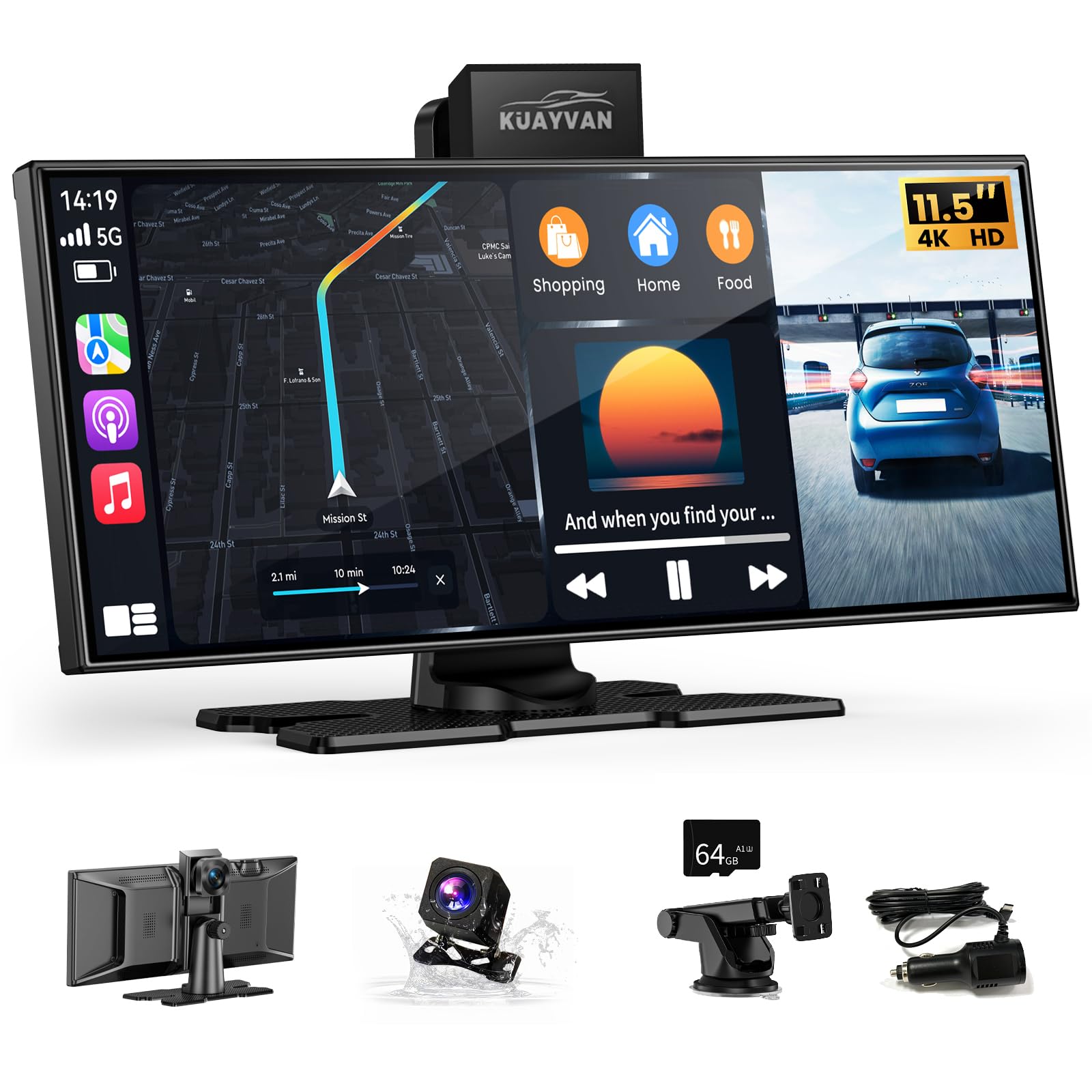
This is the “I want modern navigation today” category — a portable screen that adds wireless CarPlay/Android Auto to almost any vehicle, especially older cars that never came with a factory display. If you like phone-based maps but hate phone-based screens, this is the upgrade that changes your driving experience without forcing you to rip apart your dashboard.
The most honest way to understand it: it behaves like a small tablet designed to live in your car. Owners often describe quick setup and a screen that stays readable even in bright conditions. The main advantage is obvious: bigger map, safer glance, less phone juggling. And because it’s CarPlay/Android Auto, you can use the navigation apps you already trust — Google Maps, Waze, Apple Maps — with the interface built for driving.
Where this unit gets especially interesting is the camera package. Drivers frequently mention how helpful it is to have both a front dash camera and a rear camera option in one system. That turns this into more than navigation — it becomes a safety/recording tool too. But here’s the critical detail: installation quality is everything. You can do a quick, messy install and still have it work… or you can do a clean install that feels “factory.” The difference is cable routing, camera wiring, and mount placement.
The best user strategy is to treat it like an upgrade kit: plan where the rear camera cable runs, decide how you’ll route power, and test your audio output method (Bluetooth, AUX, or speaker). Owners commonly note that built-in speakers are functional but not “rich,” so using your car audio system for sound is the sweet spot. Once dialed in, it becomes a surprisingly premium experience for drivers modernizing older vehicles.
Why it’s a practical upgrade
- Modern navigation without dashboard surgery – Add CarPlay/Android Auto to vehicles that never had it.
- Big, bright screen – Easier to glance at safely than a phone, especially in sunlight.
- Camera ecosystem in one – Front/rear recording and reversing support can add everyday value.
- Fast setup, big payoff – Many drivers are up and running quickly, then refine the install for cleanliness.
Good to know
- Rear camera wiring is the “hard part.” If you want automatic reverse activation, plan that connection carefully.
- Audio is best through your car speakers (Bluetooth or AUX), not the built-in speaker.
- Mount orientation limitations can matter depending on where you place it; test placement before you commit.
Ideal for: older cars, renters, and drivers who want a modern CarPlay/Android Auto navigation experience with a big screen — without replacing the factory head unit.
6. Kissound 7″ Double Din – Modern Phone Navigation With Surprisingly Strong Audio Control

If your goal is modern navigation powered by your phone — but displayed safely in your dash — a double-din CarPlay/Android Auto unit like this can be the best “daily driver” upgrade you’ll ever do. It gives you the map experience you already trust (Google Maps / Waze / Apple Maps), but with a larger screen, steering-wheel control support, and better in-car ergonomics.
What makes this unit stand out in owner feedback is the balance: it feels feature-rich without being slow and chaotic. Drivers commonly praise the installation documentation, labeled wiring, and “it just works” CarPlay/Android Auto behavior once paired. That’s a big deal, because wireless phone integration is where a lot of cheaper units stumble (random disconnects, laggy response, audio weirdness).
The second real-world win is audio control. Even if you buy this primarily for navigation, the DSP, EQ options, and subwoofer output support can make your car feel better to drive — because good sound makes driving calmer. Some users note that “max watt” marketing numbers shouldn’t be taken literally, but they still report clear audio, usable volume, and good control over tone. And the backup camera integration gets consistent praise: big image, easy reverse switching, clear picture.
Expert tip: if you want a system that boots fast and stays stable, non-Android head units can be a quiet advantage. They don’t try to be a full tablet. They focus on being an interface for your phone — which often results in faster startup and fewer weird app conflicts. If you want app-install freedom, go Android. If you want “simple, quick, reliable,” this style is a smart choice.
Why drivers like it
- Wireless CarPlay/Android Auto – Modern navigation with a safer, larger dash display.
- Audio tuning depth – DSP/EQ/sub output support for drivers who care about sound quality.
- Installation-friendly documentation – Clear manuals and labeled wiring reduce install anxiety.
- Solid camera experience – Rear camera integration is commonly praised for clarity and usability.
Good to know
- Wireless connections can still be sensitive to phone settings and interference; once dialed in, most users report stable performance.
- Some vehicles require dash kits and harnesses; budget for proper install parts to avoid a shaky fit.
- If you want to install apps directly on the head unit, you’ll prefer an Android-based unit like Haudio.
Ideal for: drivers who want phone-powered navigation on a modern in-dash screen, plus strong audio control — without the extra complexity of a full Android head unit.
7. Haudio 7″ Android Double Din – App Freedom + Wireless CarPlay/AA for DIY Upgraders

Android head units are basically “a tablet that lives in your dash,” and that’s the appeal: you can install navigation apps, stream music, customize the interface, and build your own in-car workflow. This Haudio unit aims to deliver that flexibility while still supporting wireless CarPlay and Android Auto — a nice combo for households where different drivers use different phones.
In user feedback, the strongest theme is value and surprisingly smooth UI behavior for an Android unit. Owners describe stable wireless CarPlay/Android Auto in many cases, a glass screen that feels premium, and a system that goes into deep sleep (so it resumes quickly) while avoiding battery drain in typical use. That “sleep behavior” matters more than people think: if a unit boots slowly every time you start the car, you’ll resent it. A good sleep/resume pattern makes an Android head unit feel much more like factory infotainment.
Where the experience becomes “expert-level” is installation and expectations. Some users mention fitment challenges (tight dashboards, trimming, fabrication). That’s not unique to this unit — it’s the reality of double-din upgrades in many older cars. If you go in prepared (proper dash kit, proper harness, realistic time), you can end up with a clean, modern cockpit. If you try to brute force it in an afternoon, you may end up with loose mounting or button visibility annoyances.
From a navigation perspective, the advantage is options: you can run offline map apps, online navigation, or phone mirroring. The limitation is performance ceiling: a built-in amp might be “good enough” for OEM speakers but not the best match for big aftermarket setups without additional amplification. If your main goal is “navigation + basic music,” it’s a strong value play. If your goal is “high-end audio build,” plan for an amp.
Why it’s a solid DIY choice
- App freedom – Install navigation/music apps directly for a customized driving setup.
- Wireless CarPlay/Android Auto – Great for mixed-phone households and modern map app users.
- Good “resume” behavior – Deep sleep can make daily starts feel quicker and less annoying.
- Backup camera included – Adds parking confidence and daily convenience.
Good to know
- Fitment may require trimming or bracket planning in some vehicles; plan install parts ahead of time.
- Touchscreen responsiveness can vary unit-to-unit; most owners report smooth use, but expect an Android-style learning curve.
- Audio output is fine for OEM speakers; for louder aftermarket systems, an amp plan makes the experience better.
Ideal for: DIY upgraders who want Android flexibility (apps, customization) plus modern phone integration — and don’t mind spending time on a clean install.
8. Garmin Drive 53 – The Clean, No‑Drama GPS for Drivers Who Want “Just Navigation”

Not everyone wants a “smart” navigator. Some drivers want a device that does one job well: show the route clearly, speak directions reliably, and get out of the way. That’s the Drive 53 vibe. It’s a dedicated GPS with a clean touchscreen and a straightforward interface — the kind of thing you hand to a parent and they instantly understand.
The most valuable part of a simple Garmin is trust. Even when drivers love phone maps, there are days when a dedicated unit feels better: when your phone battery is low, when cell coverage is weak, when you don’t want notifications, or when you’re driving somewhere unfamiliar and you want a single-purpose tool in front of you. Owners often praise quick recalculation and the simple process of entering destinations.
This model is especially good for drivers who dislike clutter. You’re not juggling app permissions, background battery settings, and wireless connectivity quirks. You mount it, plug it in, and it behaves. That reliability becomes a quiet luxury on long drives where you just want to arrive with your nerves intact.
The expert way to use a “simple” GPS is to build a routine: update maps periodically, keep your favorites saved, and let it handle the foundational guidance. Then, if you want extra live info occasionally, you can still run phone navigation in parallel. Many experienced drivers do this on complicated trips: one device for stability, one device for live context.
Why it’s a great basic pick
- Simple, readable interface – Low learning curve and clean map presentation.
- Dedicated reliability – Doesn’t depend on cell service and doesn’t drain your phone.
- Quick recalculation – Helps when you miss a turn or choose a different route.
- Driver alerts – Useful situational warnings without overwhelming the screen.
Good to know
- This is not the “most connected” Garmin experience; premium DriveSmart models add more smart features and bigger displays.
- Mount stability matters; if the unit gradually tilts, reposition and re-seat the mount for a tighter feel.
- If you want phone-style app search and push-to-device features, consider DriveSmart models with app integration.
Ideal for: drivers who want a straightforward GPS with a clean interface — reliable navigation without the complexity of a full infotainment ecosystem.
9. OHREX N700 – The “Height Matters” GPS for RVs, Trucks, and Long Highway Drives

If you’ve ever driven an RV or truck and felt that sinking “is this bridge too low?” moment, you already understand the value of truck routing. The OHREX N700 is built for exactly that: you can enter vehicle dimensions and try to avoid height/weight restrictions. For many drivers, that feature alone reduces stress more than any flashy screen ever could.
Owners who like it often highlight two things: practical routing behavior and decent recalculation. If you intentionally deviate from the route — because you know a better road, or because traffic forces you — it can adjust without throwing a tantrum. That matters because rigid navigators can become annoying quickly, especially in unfamiliar areas. Another praised feature is warning behavior: for many users, the system feels “helpful” when it flags restrictions or hazards early enough to act.
But this is also where budget GPS reality shows up: interface language and time-zone quirks can matter. Some users report odd phrasing in voice prompts or clock settings that don’t behave as expected. That doesn’t always break navigation, but it does affect confidence. When a navigator says something vague at a critical moment (“slight left” when you need a decisive turn), it can make you second-guess. That’s why I recommend a short “local test drive” in your own area before committing to a major trip. If it behaves well at home, it will behave well on the road.
The update ecosystem is another practical consideration. This style of unit often expects map updates through a Windows PC workflow. If you’re comfortable with that, fine. If you’re a Mac-only household, you’ll want to confirm the update path ahead of time. Many owners mention customer service responsiveness — which matters because support is part of the product in this category.
Why RV/truck drivers like it
- Custom routing for bigger vehicles – Height/weight/length settings reduce “restriction anxiety.”
- Useful warnings – Restrictions and lane guidance can be helpful on long or unfamiliar drives.
- Fast recalculation – Works better than rigid navigators that insist on U-turns forever.
- Good value for dedicated routing – Offers truck-style features without premium GPS pricing.
Good to know
- Voice phrasing and UI polish may feel less refined than premium brands; do a local test run first.
- Update workflow can lean on a Windows PC; plan your update strategy before you need it.
- As with all truck routing, treat restrictions as guidance, not a guarantee — stay alert to real-world signage.
Ideal for: RV and truck drivers who want dedicated routing parameters and are comfortable with a practical, “function-first” GPS experience.
10. HINYFVOZ 7″ GPS (2026 Maps, Blue) – Big Screen + Safety Alerts for Drivers Who Hate Surprises

This unit is built around two big comfort features: a large, readable touchscreen and proactive safety alerts. If you’re the type of driver who doesn’t mind guidance — you mind surprises — the warnings are the headline. Speed limits, red-light camera alerts, school zones, and route guidance that speaks clearly can make unfamiliar areas feel more predictable.
In positive feedback, drivers often highlight screen clarity and responsiveness, plus quick GPS lock once the device has a clear view of the sky. They also like the concept of “phone independence” — you get navigation without draining your phone battery or relying on a cell signal. That can matter a lot on long drives, especially if your phone is also doing music, calls, and passenger entertainment.
The strongest real-world story here is vehicle routing profiles. Truck/RV drivers can enter dimensions so the system attempts to avoid restricted roads. Car drivers can simply run it in car mode and get normal routing. The advantage is flexibility: one device can live in a household with multiple vehicle types. For many families, that’s the difference between buying one dedicated tool and buying multiple specialized devices.
The main practical learning curve is initial setup. This category often asks you to set time zone, vehicle profile, and sometimes route preference early on. Do it once carefully and the device tends to feel “set and forget.” Skip it, and you can end up with avoidable annoyances (arrival time errors, overly cautious routing, or warnings you didn’t want). The best approach is to treat first use like onboarding: charge fully, set your vehicle profile, then do a short test run.
Why it’s useful
- Readable 7-inch screen – Easier to follow than a phone, especially for older eyes.
- Safety alerts – Helpful reminders that can reduce “surprise” moments in unfamiliar zones.
- Vehicle profile flexibility – Works for cars and can be configured for larger vehicles too.
- Phone independence – Offline guidance without constant battery drain or data reliance.
Good to know
- First GPS signal lock can take time in blocked areas; initial setup is best done outdoors with open sky.
- Update workflows may require contacting the manufacturer or using a PC; plan your update routine.
- If your top priority is premium UI polish, Garmin units typically feel more refined.
Ideal for: drivers who want a big offline GPS with strong safety alerts, plus optional truck/RV routing settings when needed.
11. Ptaram 7″ GPS (2026 Maps) – Clear Lane Guidance for Drivers Who Want Earlier Prompts
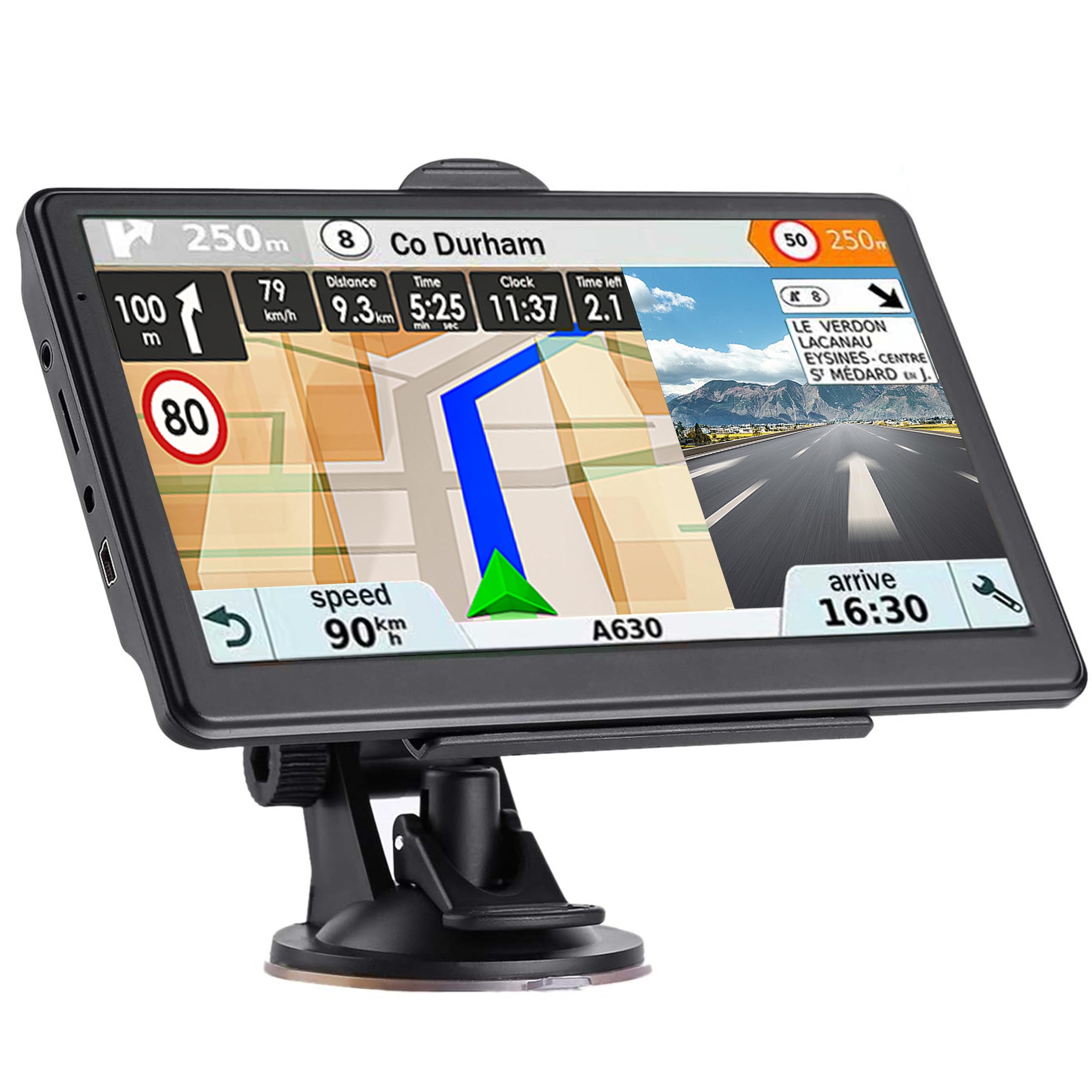
Most “budget GPS” reviews sound the same… until you find one that keeps repeating a very specific compliment: the prompts arrive early enough to feel calm. That’s what stands out in the strongest Ptaram owner feedback — especially around complicated interchanges where phone GPS can sometimes update late and force a last-second lane change.
That “prompt timing” is the hidden difference between a navigator you trust and one you fight. When the cues arrive early, you can position your car smoothly. When they arrive late, you tense up, brake, merge, and feel annoyed. Users describe the large screen as easy to read at a glance and the voice guidance as clear enough that they don’t need to keep looking down for confirmation. That’s exactly what you want from a dashboard navigator: less glance time, more confidence.
This unit also leans into multi-vehicle flexibility (including truck routing modes). For car drivers, that’s mostly optional — but it’s useful if you share the device across different vehicles or drive a van/RV occasionally. What matters more for most drivers is the day/night behavior, lane assist clarity, and how it handles “real commute chaos.” If it helps you anticipate exits and merges, it’s doing its job.
A practical detail that owners often mention: cable management. Many devices ship with longer cords than you expect. The “expert move” is simple: route the cable along the edge of your dash, use clips if needed, and keep it out of your steering and shifter area. A clean install doesn’t just look nicer — it makes you less likely to rip the cable out accidentally or stop using the device.
Why it’s a good everyday tool
- Early, usable prompts – Lane guidance timing can reduce last-second merges.
- Big, readable display – Easier to glance at quickly without losing road awareness.
- Comfortable voice guidance – Clear cues reduce the need for constant screen checking.
- Flexible modes – Multi-vehicle settings help households with mixed driving needs.
Good to know
- Update process can require a computer or TF card workflow; plan your update routine.
- As with any budget GPS, UI polish may feel less modern than Garmin/CarPlay experiences.
- Truck routing is helpful, but always validate decisions against real-world signage.
Ideal for: drivers who want a big offline GPS with strong lane guidance timing — especially helpful on interchanges where late prompts cause stress.
12. HINYFVOZ 7″ GPS (Complete Kit) – A Straightforward First GPS for Drivers Leaving Phone Navigation

A lot of drivers want a dedicated GPS for one simple reason: they’re tired of their phone doing everything. Phone navigation is powerful — but it can be distracting, power-hungry, and frustrating in dead zones. This style of GPS is designed to be the opposite: a standalone navigator that’s ready to mount, power, and use with minimal fuss.
Owners who like it tend to praise the basics: clear screen, smooth touch response, loud voice guidance, and simple route planning. That might not sound exciting, but “boringly functional” is exactly what you want from a navigation tool. It’s also why the included kit matters. When the box includes what you actually need — mount, charger, visor — your first week goes smoother. And if the first week goes smoother, you’re more likely to keep using it instead of going back to your phone.
This device category typically offers route modes (fastest, shortest, eco-style options) and the ability to choose 2D or 3D map view. Those aren’t “wow” features — they’re comfort features. If you prefer a simpler map, choose 2D. If you want more spatial context, choose 3D. The important part is that the device lets you pick what feels easiest for your brain. People underestimate that. Navigation is cognitive load. Anything that reduces cognitive load is value.
One caution from real-world feedback: time and speed limit data can occasionally feel inconsistent on budget units if settings are off. If a user reports arrival time being wrong, it’s often tied to time zone configuration or auto-time settings. So do the setup carefully once, then lock it in. If you treat setup as “whatever,” you’ll see avoidable weirdness later.
Why it’s a good first GPS
- Complete in-box setup – Mount and accessories reduce “extra shopping” friction.
- Clear voice guidance – Loud, readable directions that don’t require constant screen checking.
- Offline independence – Works without relying on mobile data for basic navigation.
- Simple route options – Lets drivers choose the style of routing that matches their comfort.
Good to know
- Some units require careful time zone settings to avoid ETA confusion — take five minutes to set it correctly once.
- Interface can feel less intuitive than Garmin or CarPlay; expect a small learning curve.
- If you’re a heavy city driver who wants the best real-time rerouting, phone-powered maps may still be stronger.
Ideal for: drivers who want a simple, standalone GPS with a complete accessory kit — especially useful for long trips, dead zones, or reducing phone dependence.
13. AXIOVINEX 7″ GPS (2025 Maps) – A Bright, Readable Offline Navigator for Simple Trips

This is a practical pick for drivers who want a readable offline GPS and don’t want to overthink it. In positive feedback, a consistent theme is screen visibility — a display that stays clear in sunlight and remains easy to read at a glance. That matters more than people expect, especially if you’re coming from phone navigation where glare can be brutal.
The multi-vehicle modes (car, truck, RV, etc.) make it flexible for households with different driving needs, but for most car drivers the key benefit is simply a stable offline navigation experience. It’s the kind of device you keep in the glove box, mount when needed, and trust for unfamiliar routes without worrying about cell service. That “grab and go” aspect is why dedicated GPS still exists: sometimes you want a tool, not an ecosystem.
The biggest weakness reported by unhappy users is often not “maps are wrong” — it’s UI friction. If the address entry flow feels unintuitive, it can be a dealbreaker, because destination entry is the first thing you do. This is where expectations matter: premium devices tend to have smoother, more intuitive search. Budget devices can still get you there, but you may need to learn the device’s logic (country/state first, then city/zip, then street). Once you “get it,” it’s fine. Before you get it, it can feel annoying.
If you’re considering this type of GPS, the expert strategy is simple: do a practice run in your driveway, save “Home” and “Work” or your most common destinations as favorites, and learn the address entry sequence once. After that, the device becomes much easier to live with.
Why it can fit your life
- Readable display – Often praised for staying visible in bright conditions.
- Offline reliability – Helpful for dead zones, road trips, and reducing phone dependency.
- Flexible mounting – Windshield/dash options help you find a stable placement.
- Practical alerts – Speed and warning prompts can add confidence in unfamiliar areas.
Good to know
- UI and manual quality can vary; budget devices reward a little patience during first setup.
- Address entry may not feel as “natural” as phone search; favorites help a lot.
- If you want the most refined experience, premium Garmin or CarPlay-based options may feel smoother.
Ideal for: drivers who want a simple, readable offline GPS for occasional trips or as a backup navigator — especially helpful when phone navigation is inconvenient.
14. HINYFVOZ 7″ GPS (2026 Maps) – Simple, Helpful, and Ready for Everyday Family Driving

For many families, the perfect navigation device is the one that feels simple enough that nobody argues about it. You mount it, you type the destination, you go. This HINYFVOZ model fits that “family tool” role: a dedicated GPS with a big screen, voice guidance, practical alerts, and easy POI search for gas, food, and stops along the route.
In the most positive owner feedback, people describe the experience as straightforward and surprisingly helpful in low-signal areas. That’s a key point: on trips where cell service drops, phone navigation can become unreliable. A dedicated GPS keeps working, which reduces the “are we lost?” feeling — especially when you have kids in the back seat asking for snacks. POI search matters more than people think: “find a gas station near the route” is one of the most valuable trip features a navigator can provide.
This unit also supports multiple vehicle types and custom routing modes, which is useful if you occasionally drive a larger vehicle. But for most car drivers, the real win is day-to-day simplicity: clear screen, stable mount, and voice prompts that don’t feel overly robotic or late. The goal isn’t to impress you with technology. The goal is to guide you with minimal drama.
Practical advice: set up favorites early. Home, work, a common family destination — anywhere you go frequently. Once favorites are stored, the device feels faster and more “owned.” It stops being “a gadget” and starts being “the car’s navigator.” That emotional shift is real, and it’s why some drivers love dedicated GPS even in a phone-first world.
Why it works for families
- Simple daily usability – Straightforward navigation without phone dependency.
- Helpful POI search – Find gas, food, and stops quickly along trips.
- Clear voice prompts – Designed to guide without constant screen staring.
- Flexible routing modes – Useful if you occasionally drive a larger vehicle or want different route styles.
Good to know
- Like most value GPS units, it benefits from a careful initial setup (time, units, route preference) to avoid weirdness later.
- UI polish can be less “luxury” than premium GPS or CarPlay, but many families prefer the simplicity.
- Always place the mount where it won’t obstruct your sightline and where you can glance safely.
Ideal for: families and everyday drivers who want a simple offline GPS for trips, errands, and backup navigation when phones are inconvenient.
How Navigation Systems Fail in Real Life (and How to Avoid It)
Most “bad navigation experiences” are predictable. They happen because of one of four failure types: signal, screen, sound, or setup. When you understand these, you can choose a device that fits your environment — and avoid the mistakes that make people abandon nav devices entirely.
1) Signal failure: “Where am I?” moments
- Urban canyon drift – Tall buildings can cause GPS bounce and delayed position updates.
- Cold start delays – Some devices take longer to lock a signal after long storage or first-time use.
- Heat-soak behavior – Devices left in hot cars can behave sluggishly until they cool.
What helps: devices that lock signal quickly, and realistic first-use habits. If you’re using a dedicated GPS for the first time, do the initial lock in an open area. If you’re using a phone-powered CarPlay screen, remember that your phone is the GPS brain — keep it powered and positioned well.
2) Screen failure: glare, vibration, and “tap fatigue”
- Glare makes you look longer than you should.
- Vibration makes a screen hard to read and physically annoying.
- Touch inaccuracy destroys confidence (especially on in-dash systems).
This is why premium GPS displays and well-designed CarPlay screens often feel “safer”: your glance time drops because you can read faster. If you’re upgrading in-dash, test touch accuracy before you fully rebuild the dashboard trim.
3) Sound failure: the voice prompts are there… but you can’t hear them
- FM transmitters can be convenient, but they can also be finicky in busy radio areas.
- Built-in speakers are often functional, not rich — fine for directions, not always great in loud cabins.
- Audio mixing matters: if nav prompts fight your music volume constantly, you’ll stop listening.
The best fix is routing audio intentionally: CarPlay/Android Auto units usually route to your car speakers cleanly. Portable screens often work best over AUX or Bluetooth to the car. Dedicated GPS units can be placed closer if your cabin is loud, or paired thoughtfully if supported.
4) Setup failure: it’s not broken, it’s misconfigured
- Wrong time zone makes ETA feel “wrong,” which undermines trust.
- Wrong vehicle mode (truck mode in a car) can create odd routing.
- Overactive alerts can make the device feel naggy instead of helpful.
The fix is one-time setup discipline: spend five minutes setting time, units, vehicle mode, and alerts properly. After that, the device feels smoother and smarter — because it’s finally speaking your language.
FAQ: Choosing and Using a Navigation System (Without the Confusion)
Is a dedicated GPS still worth it when I have a smartphone?
Should I choose CarPlay/Android Auto instead?
What’s the easiest upgrade for an older car with no screen?
Do “truck routing” devices actually help if I drive a normal car?
Why do some GPS devices show the wrong arrival time?
Where should I mount a navigation device for the safest use?
What’s the best way to avoid “I missed the exit” moments?
Final Thoughts: Your Best Navigation System For Car Is the One You’ll Actually Use
A truly great navigation setup doesn’t feel like “more tech.” It feels like less stress. Halfway through your drive, you realize you’re calmer — because you’re not fighting a screen, guessing lanes, or second‑guessing your route.
Here’s the simplest way to choose confidently:
- Want the most balanced, low-stress choice for most drivers? Start with the Garmin DriveSmart 76. It’s the sweet spot of clarity, usability, and “I trust this daily” comfort.
- Want maximum map visibility for road trips and complex highways? Choose the Garmin DriveSmart 86 for the biggest, most glance-friendly view.
- Driving a supported Jeep and want an integrated cabin upgrade? The TWAHH 10.2″ Jeep head unit can make your dashboard feel modern and cohesive.
- Want phone-powered navigation on a modern in-dash screen? Go with the Kissound double-din CarPlay/Android Auto unit for a clean daily workflow and strong audio control.
- Want the quickest modern upgrade without replacing your stereo? The Kuayvan 11.5″ portable CarPlay screen adds modern maps and cameras fast — ideal for older cars.
- Want Android app flexibility in-dash? The Haudio Android head unit is a flexible DIY choice if you’re comfortable with setup and install planning.
- Prefer a simple dedicated GPS without the premium ecosystem? Pick the Garmin Drive 53 for straightforward “just navigate” reliability.
- Need truck/RV routing and restrictions awareness? Start with the OHREX N700 or the HINYFVOZ 2026 GPS (Blue) if you want vehicle profile routing and safety alerts.
The smartest purchase is the one that matches how you drive: city reroutes, rural dead zones, family road trips, or a full infotainment upgrade. Pick the best navigation system for car that removes friction for your hardest scenario, and every drive after that becomes easier — not because you bought more tech, but because you bought the right tool.